Table of Contents
- Western Digital 2TB USB Elements data recovery - When a WD USB Hard Drive Stops Mounting and Starts Clicking
- Initial Evaluation: Understanding the Failure of WD 2TB USB Elements
- Why WD USB Elements Drives Require Special Handling
- Step by Step Breakdown of the Data Recovery Process of WD 2TB USB Elements
- 1. Accessing the Locked Firmware
- 2. Unlocking the ROM Using PC‑3000
- 3. Writing the Unlocked ROM Back to the Native PCB
- 4. Preparing the PCB for SATA Conversion
- 5. Installing the SATA Adapter
- 6. Accessing and Backing Up the Service Area
- 7. Creating a Head Map and Evaluating Head Health
- 8. Cloning the Drive Using Healthy Heads First
- 9. Recovering Data from the Weak Head
- Final Outcome: Complete Western Digital 2TB USB Elements data recovery
- Common Symptoms of WD 2TB USB Elements Drive Failure
- Important Caution
- Contact Disk Doctors Data Recovery UK
- Frequently Asked Questions
Western Digital 2TB USB Elements data recovery - When a WD USB Hard Drive Stops Mounting and Starts Clicking
Western Digital 2TB USB Elements data recovery, When a hard drive suddenly stops working, the impact can be devastating, especially when it contains years of personal or business data. At Disk Doctors Data Recovery UK, we recently handled a complex case involving a Western Digital USB Elements 2TB hard drive that had become completely inaccessible. The client reported that the drive would not mount, displayed a continuous blinking light, and occasionally produced a clicking sound. With over 4 to 6 years of important data stored on the device, a safe and thorough recovery was essential.
This case study walks through our diagnostic findings, the specialised recovery procedures we used, and how our team successfully restored all the client’s data.
Initial Evaluation: Understanding the Failure of WD 2TB USB Elements
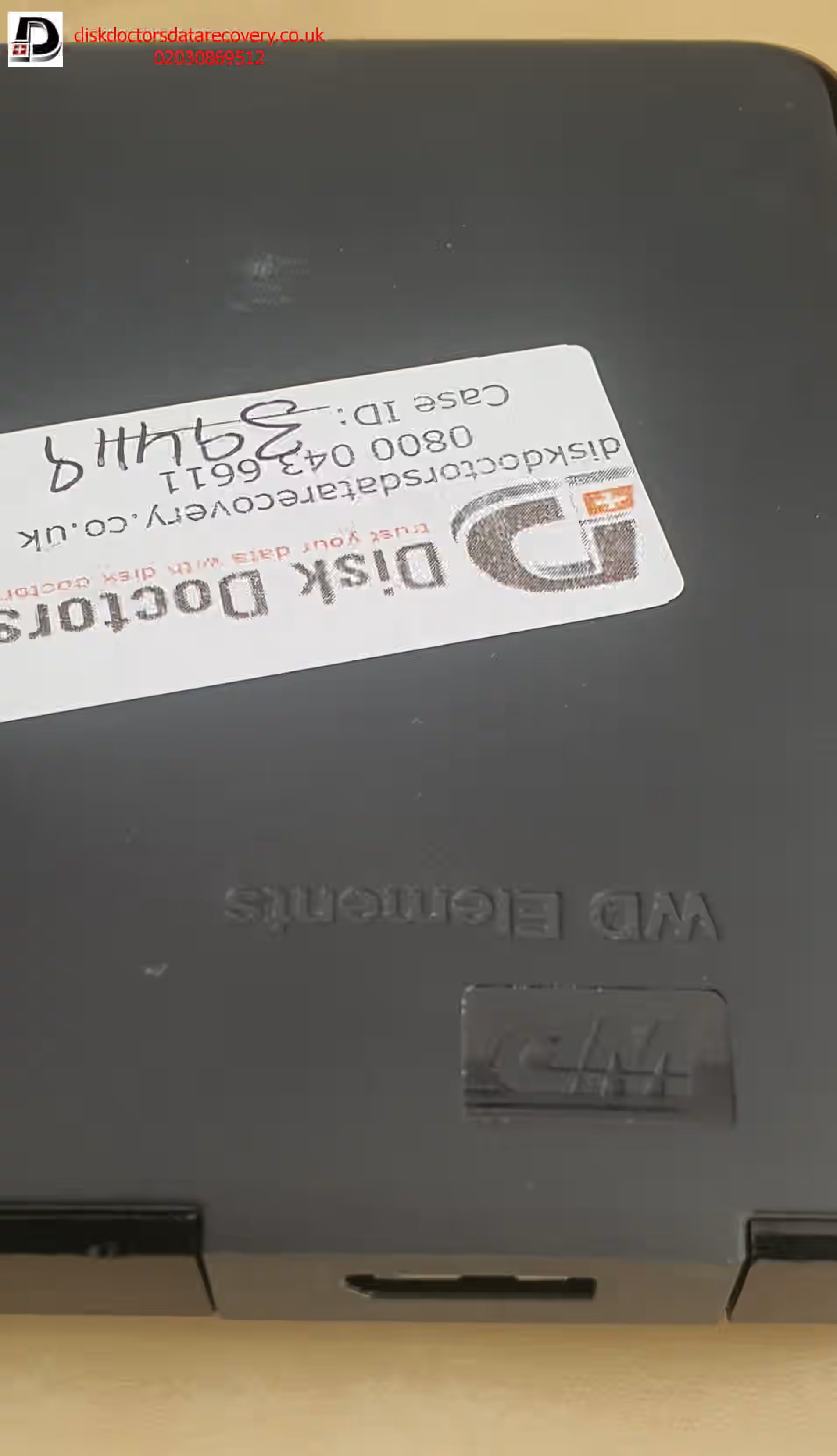
As part of our free evaluation service, we examined the WD 2TB USB Elements drive to determine the cause of failure. The drive was spinning, which indicated that the motor and basic mechanics were functional. However, it was unable to read data properly. Although no head appeared completely dead, the drive exhibited classic symptoms of read instability.
In cases like this, the drive may attempt to mount but will do so extremely slowly or fail entirely. WD USB Elements drives are known for their locked firmware and USB‑only interface, which complicates recovery. Because the USB interface blocks low‑level access, data recovery cannot be performed through the USB port. This meant we needed to follow a specialised procedure to safely access the firmware, unlock the ROM, and convert the PCB to SATA.
Why WD USB Elements Drives Require Special Handling
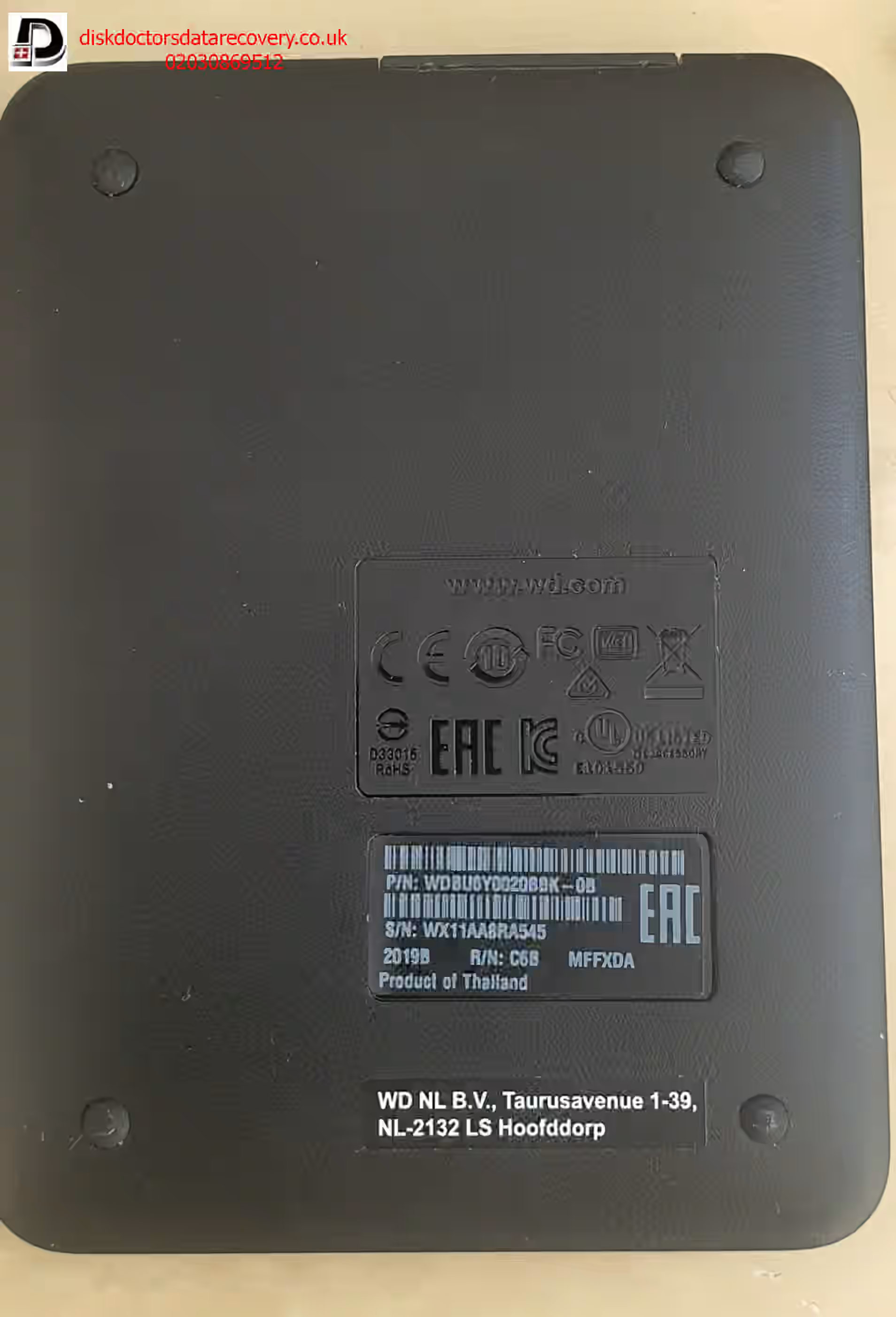
Western Digital USB Elements drives use a factory‑locked ROM and a USB PCB. This design prevents direct access to the drive’s internal firmware and service area. While this is fine for everyday use, it becomes a major obstacle when the drive fails.
To perform a professional recovery, engineers must:
Unlock the ROM
Convert the USB PCB to SATA
Access the service area modules
Evaluate head health
Clone the drive sector‑by‑sector
This process requires specialised tools, experience, and controlled handling to avoid further damage.
Step by Step Breakdown of the Data Recovery Process of WD 2TB USB Elements
1. Accessing the Locked Firmware
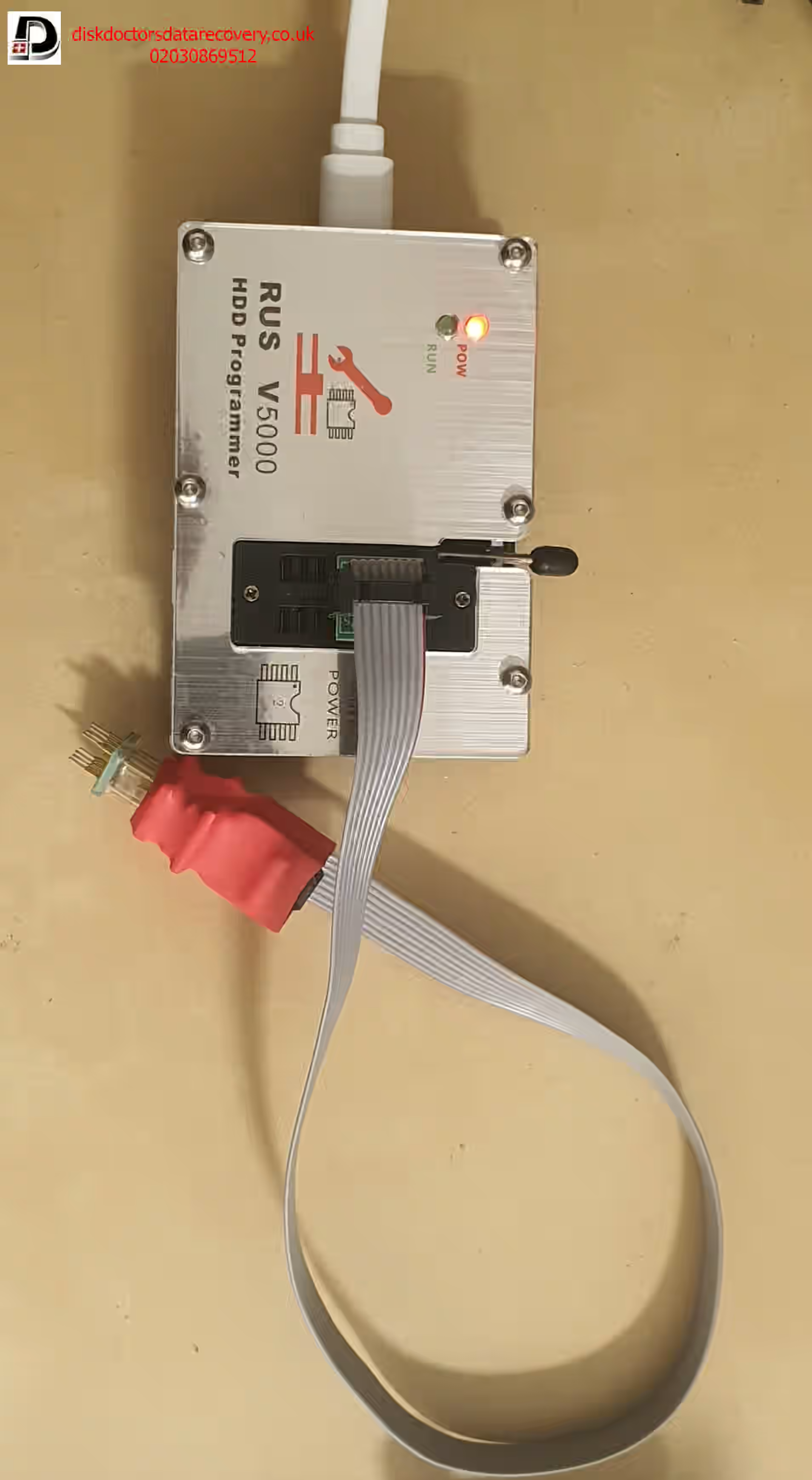
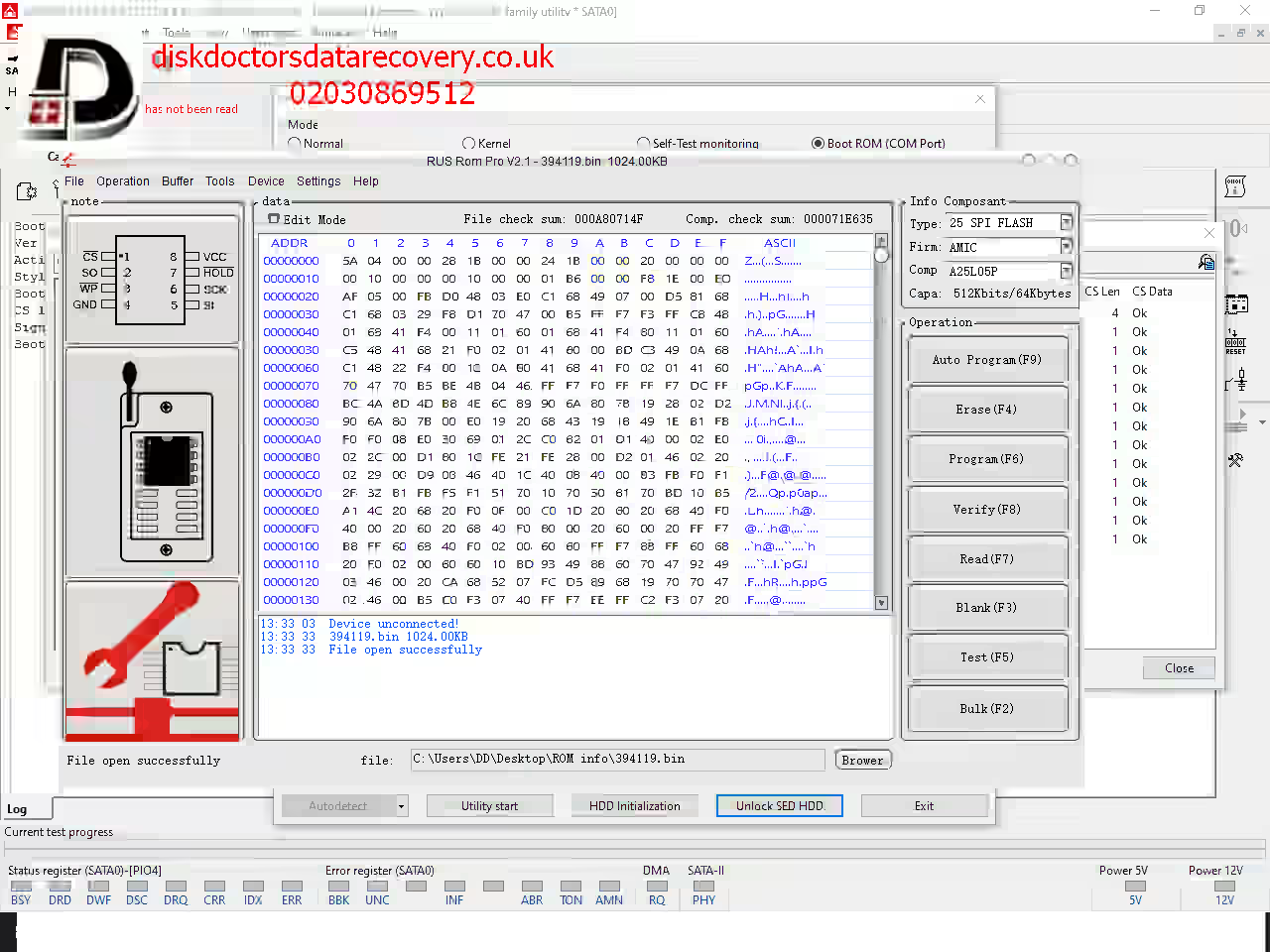
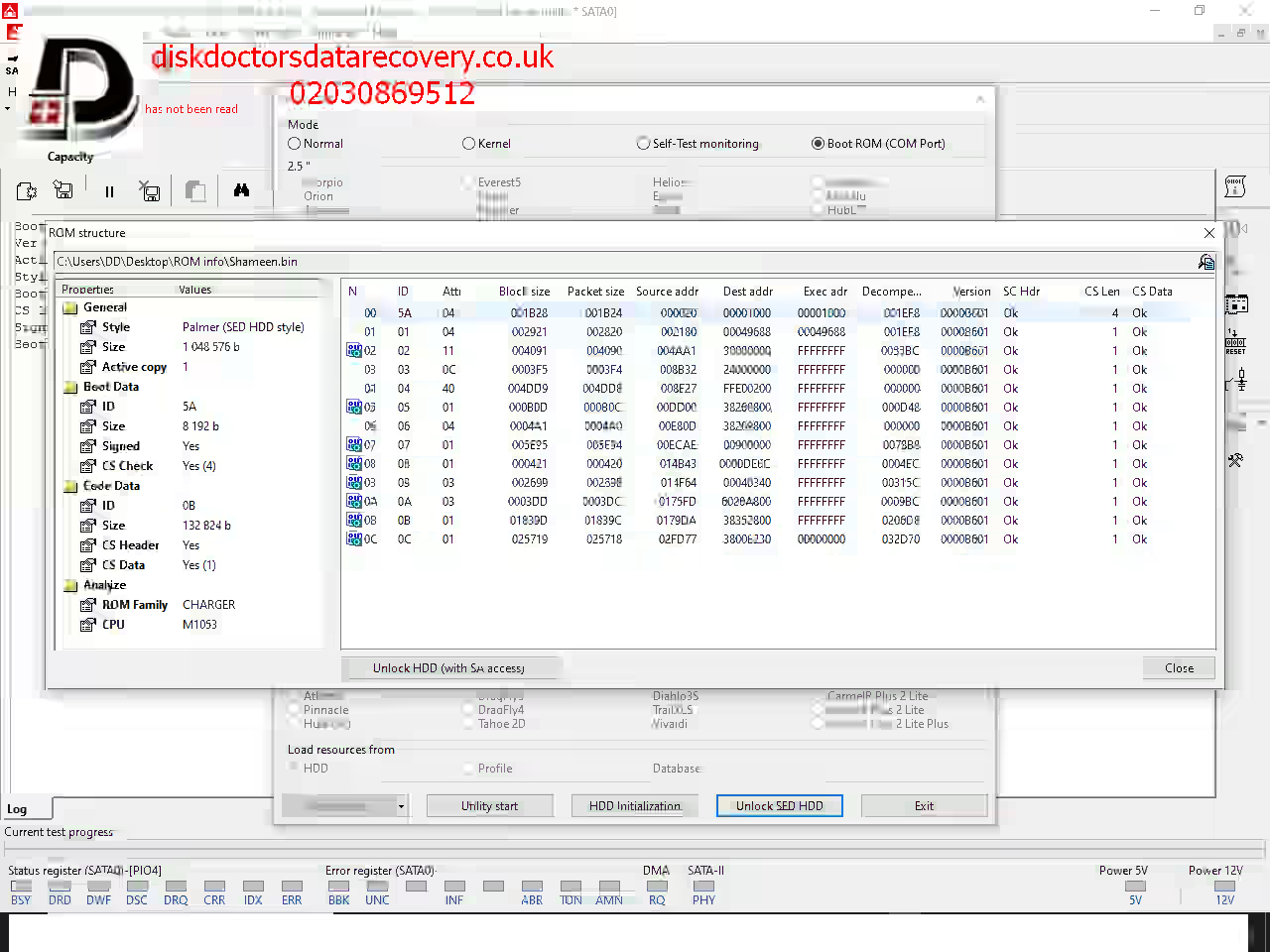
The first step was to access the drive’s firmware, which is factory locked. Using an external ROM reader, we extracted and saved the ROM. This drive belonged to the WD CHARGER family, which requires specific unlocking procedures.
2. Unlocking the ROM Using PC‑3000
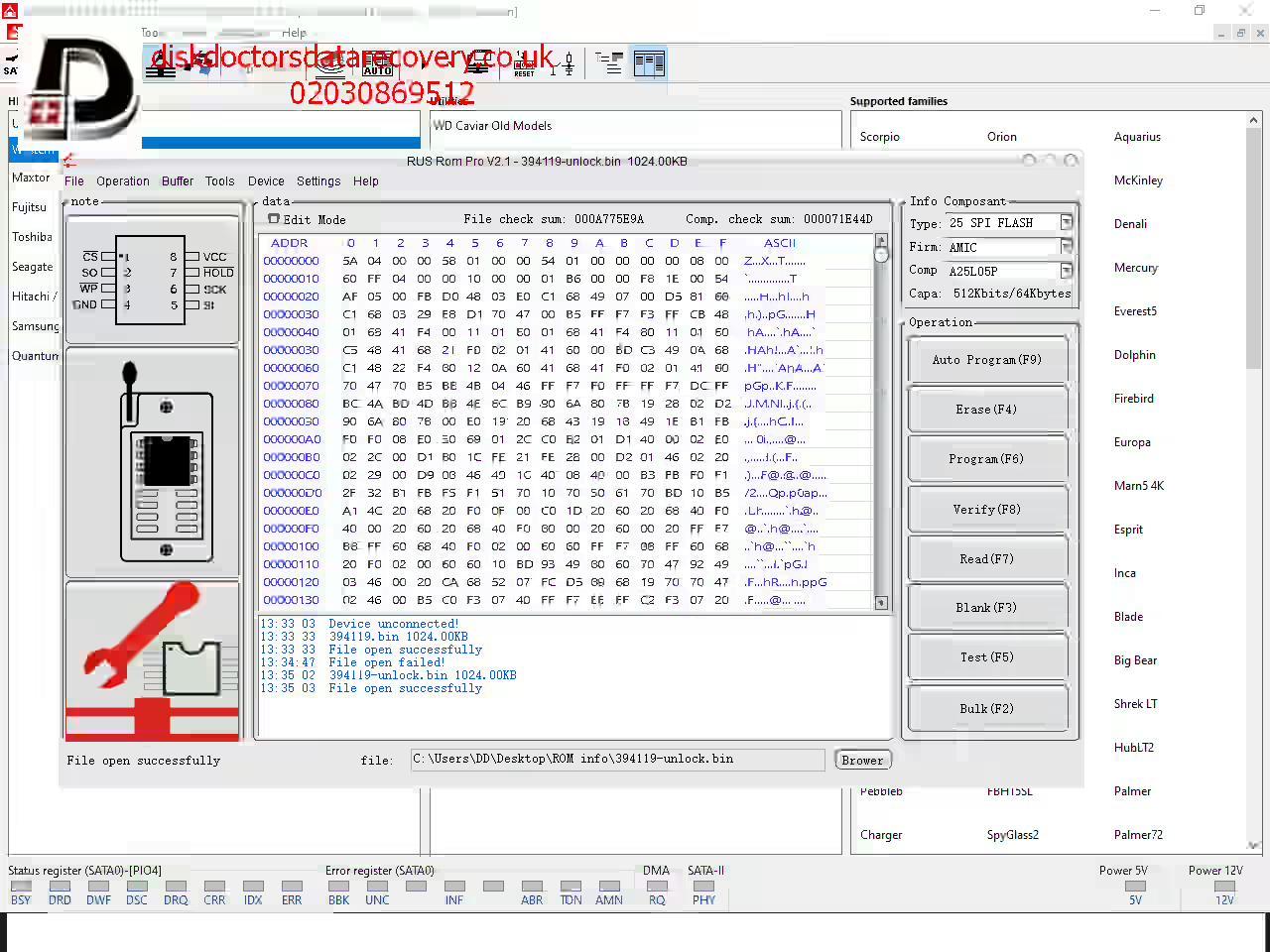
We used PC‑3000, an industry leading data recovery hardware, to unlock the ROM. Once unlocked, we saved the modified ROM for use in the next steps.
3. Writing the Unlocked ROM Back to the Native PCB
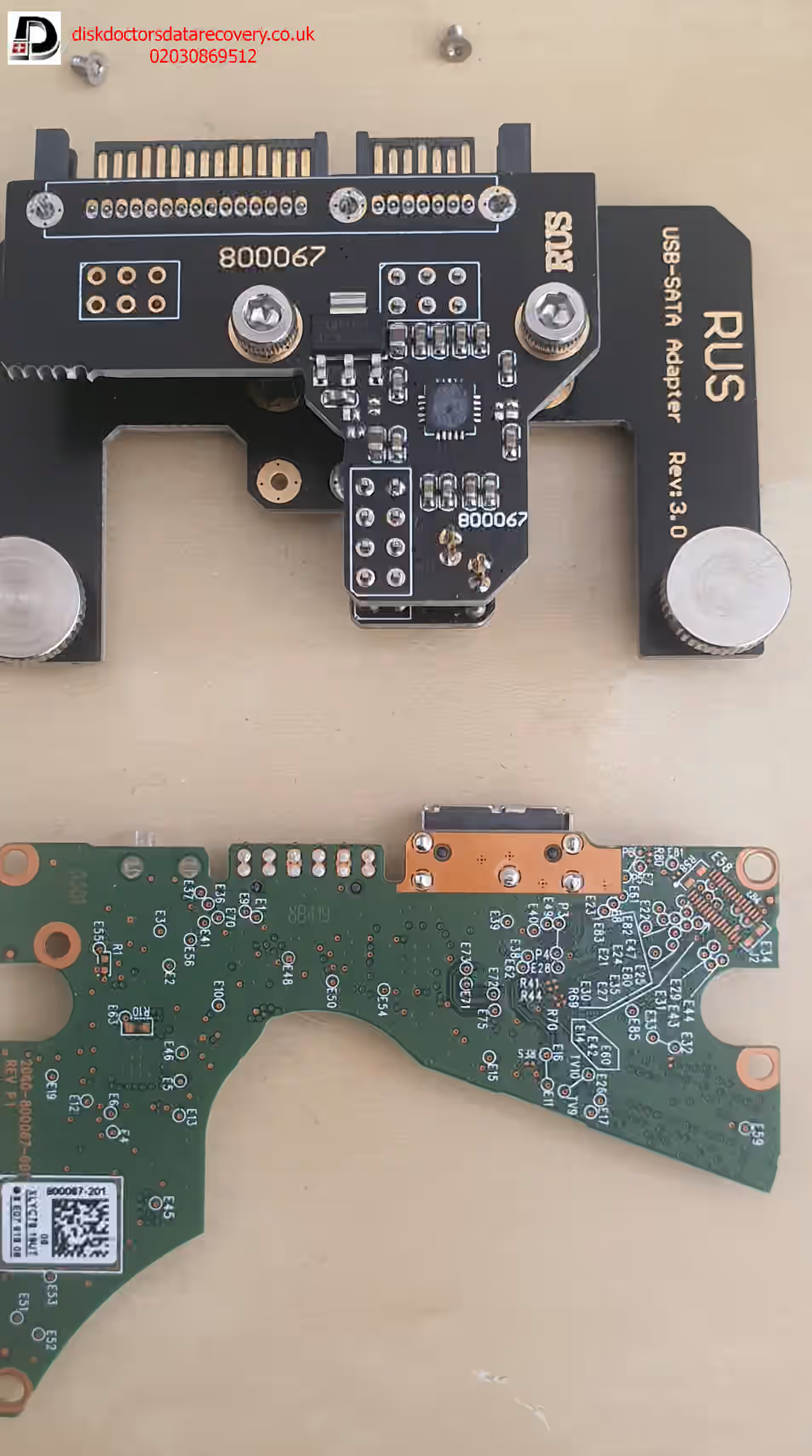
The unlocked ROM was written back to the original USB PCB (model 2060‑800067‑001). This allowed us to bypass the factory restrictions and gain deeper access to the drive’s internal structure.
4. Preparing the PCB for SATA Conversion
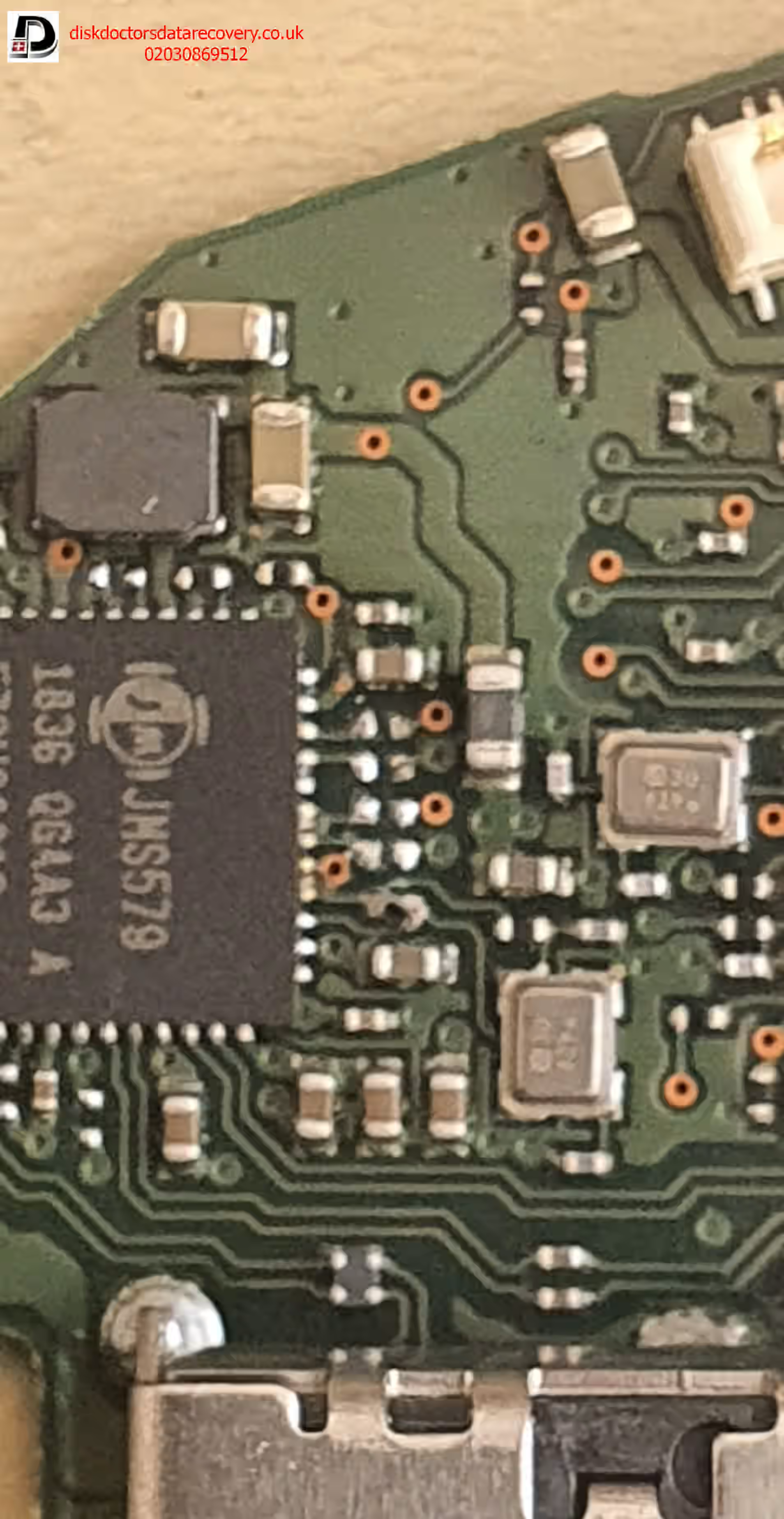
To convert the USB PCB into a SATA‑compatible board, we removed four capacitors. This step is essential because WD USB boards do not provide direct SATA access without modification.
5. Installing the SATA Adapter
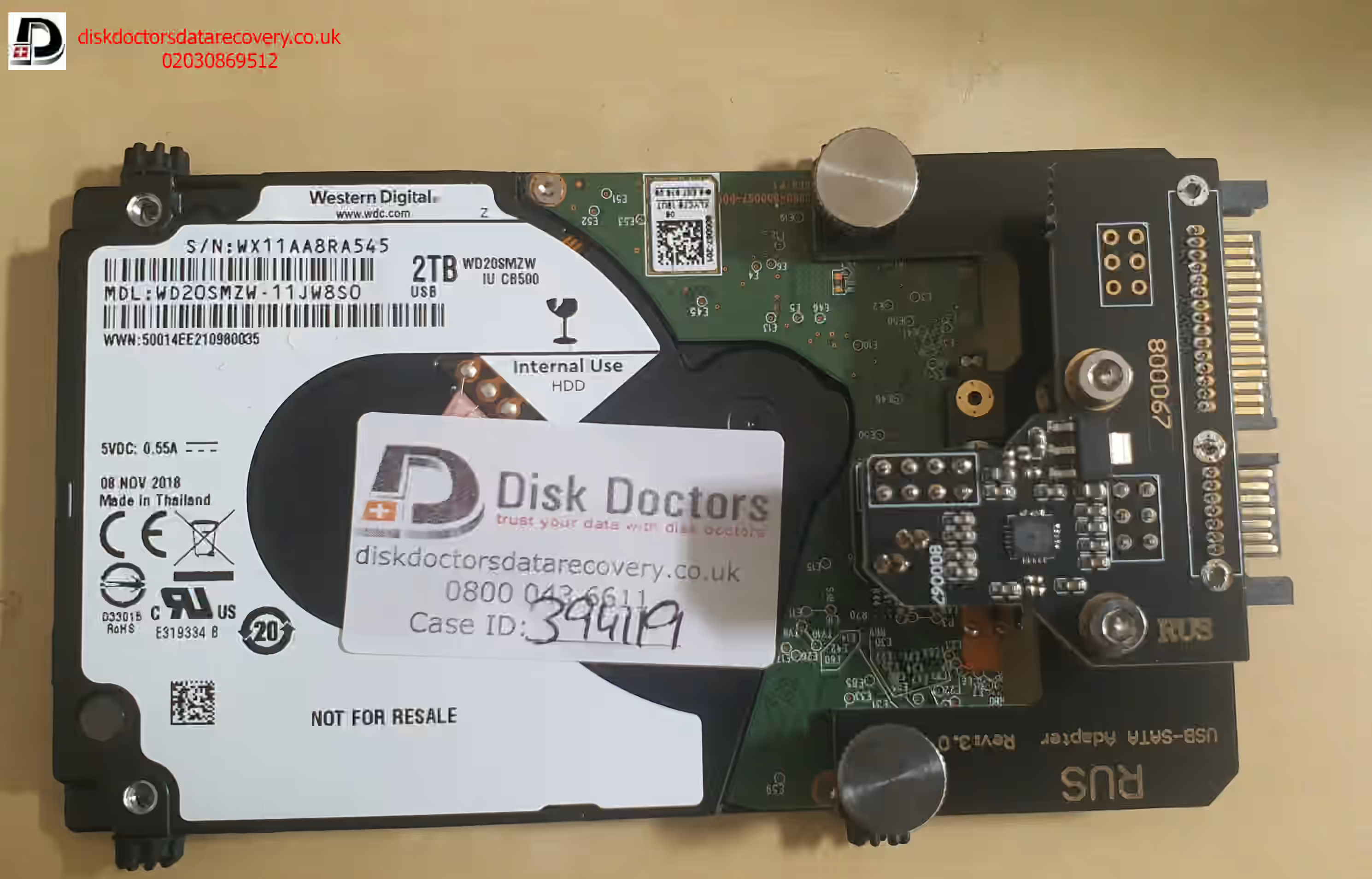
We used a dedicated 800067 SATA adapter, which provides a clean and reliable conversion. Although universal adapters can be soldered to points E71, E72, E73, and E75, the dedicated adapter is far more stable and reduces the risk of connection issues.
6. Accessing and Backing Up the Service Area
Once the drive was powered through SATA, PC‑3000 allowed us to access the service area. We backed up critical modules, especially the translator, which is responsible for mapping logical addresses to physical sectors. Without a healthy translator, data cannot be read correctly.
7. Creating a Head Map and Evaluating Head Health
We created a head map to assess the condition of each read/write head. One head was identified as weak, meaning it could read some sectors but struggled with others. Weak heads must be handled with extreme care to avoid permanent damage.
8. Cloning the Drive Using Healthy Heads First
We began cloning the drive by using the healthy heads to transfer stable sectors to a new drive. This ensures that the majority of data is recovered safely before attempting to read unstable areas.
9. Recovering Data from the Weak Head
After securing the bulk of the data, we focused on the weak head. Using controlled read parameters and slow, careful extraction, we recovered as much data as possible. Although we encountered bad sectors, our engineers were able to transfer nearly all remaining sectors successfully.
Final Outcome: Complete Western Digital 2TB USB Elements data recovery
Thanks to a carefully structured recovery plan and the expertise of our engineers, Disk Doctors UK successfully recovered all of the client’s data from the failing WD 2TB USB Elements hard drive. Despite the weak head and bad sectors, the combination of firmware access, PCB conversion, and controlled cloning allowed us to achieve a full recovery.
Common Symptoms of WD 2TB USB Elements Drive Failure
If you own a WD USB Elements drive, watch for these warning signs:
WD Drive is extremely slow to mount
Data appears but cannot be copied or moved
Continuous blinking LED
Occasional WD drive clicking noises
These symptoms indicate internal read problems and should be addressed immediately.
Important Caution
If your WD 2TB USB Elements drive shows any of the above issues, do not repeatedly plug and unplug the drive. This can worsen the condition of the USB hard drive and lead to permanent data loss. Avoid DIY software tools, as they can stress the drive further.
Always seek professional help.
Contact Disk Doctors Data Recovery UK
If your WD USB Elements hard drive or any other hard disk data recovery has stopped working, Disk Doctors can help.
Call us at 02030 869 512 Or submit a case using the form at the top‑right of our website for a free quote and free evaluation.
Your data is valuable, trust the specialists who recover it safely.
Frequently Asked Questions
Why does a WD 2TB USB Elements hard drive show a blinking light and clicking sound?
A blinking LED and occasional clicking usually indicate read instability, firmware access issues, or a weak head inside the drive. WD USB Elements drives often fail to mount when the firmware is locked or when internal heads struggle to read the service area. Professional evaluation is required to prevent further damage.
Can data be recovered from a WD USB Elements drive that won’t mount?
Yes. Even if the drive won’t mount, data can often be recovered by unlocking the ROM, converting the USB PCB to SATA, accessing the service area, and cloning the drive using specialised tools like PC‑3000. Disk Doctors UK performs this process safely without risking further data loss.
Why can’t WD USB Elements drives be recovered through the USB port?
Western Digital USB Elements drives use factory locked firmware and a USB only PCB that blocks low level access. To perform proper data recovery, the PCB must be converted to SATA so engineers can access the firmware, service area, and heads directly.
What are the common symptoms of a failing WD 2TB USB Elements hard drive?
Typical symptoms include:
Very slow mounting
Not mounting at all
Drive shows data but won’t copy or move files
Continuous blinking LED
Occasional clicking noises, these signs indicate internal read problems and should be handled by professionals immediately.
What should I avoid doing if my WD USB Elements drive stops working?
Do not repeatedly plug and unplug the drive, run software scans, or attempt DIY fixes. These actions can worsen head damage and cause permanent data loss. Always seek professional data recovery assistance.
How did Disk Doctors UK recover data from this WD 2TB USB Elements drive?
Our engineers unlocked the ROM, converted the USB PCB to SATA, backed up critical service area modules, created a head map, and cloned the drive using PC 3000. Despite a weak head and bad sectors, we successfully recovered all the client’s data.
Who should I contact for WD USB Elements data recovery in the UK?
Disk Doctors Data Recovery UK tel:02030 869 512 . We offer free evaluation and a no obligation quote for all WD USB Elements failures.
How much it will cost to recover data from Western Digital 2TB USB elements hard drive?
Disk Doctors offers a free evalaution with no obligation quote. The recovery cost starts from £99. Call 02030 869 512 for more information on the costs.