Table of Contents
- Laptop Recovery USB
- System Restore
- Factory Reset
- Windows Fails to Boot
- Corrupted Windows System Files
- Unresponsive Laptop
- Failed Windows Updates
- A Working Windows Computer
- Administrator Access
- A Blank USB Drive
- Step 1: Open Recovery Drive Tool
- Step 2: Choose System File Backup Option
- Step 3: Select USB Drive
- Step 4: Complete the Creation Process
- Step-by-Step Process
- Step 1: Insert the USB Drive
- Step 2: Open Boot Menu
- Step 3: Select USB Boot Option
- Recovery USB Not Recognised
- System Restore Failed
- Files Missing After Factory Reset
- Frequently Asked Questions
Laptop Recovery USB: How to Create and Use One to Restore Your System
A laptop that suddenly refuses to start can be stressful, especially when important documents, photos, work files, or personal data are stored on it. In many situations, a Laptop Recovery USB can help repair Windows startup issues, access recovery tools, restore system settings, or reinstall the operating system.
A recovery USB drive serves as an emergency recovery environment that lets you troubleshoot problems even when Windows cannot load normally. It can be extremely useful when your laptop experiences boot failures, corrupted system files, malware damage, or serious operating system errors.
However, recovery tools should be used carefully. Some options, such as factory resets or Windows reinstallations, can remove personal files if performed incorrectly.
In this guide, we’ll explain what a Laptop Recovery USB is, how to create one on Windows 10 and Windows 11, how to boot your laptop from it, and what to do if recovery attempts result in data loss.
What Is a Laptop Recovery USB?
A Laptop Recovery USB is a bootable USB drive that contains Windows recovery tools designed to troubleshoot and repair system problems.
Unlike a normal USB drive used for storing files, a recovery USB drive contains special recovery software that allows your laptop to boot into an external recovery environment instead of loading Windows normally.
A recovery USB can help you:
- Repair startup problems
- Access advanced troubleshooting tools
- Restore Windows to an earlier state
- Reset your laptop
- Reinstall Windows
- Diagnose operating system problems
Many users confuse recovery USB drives with regular Windows installation media, but they serve different purposes.
A Windows installation USB is mainly used to install a fresh copy of Windows.
A recovery USB is designed primarily for repairing an existing Windows installation and accessing recovery options.
Laptop Recovery USB vs System Restore vs Factory Reset: What’s the Difference?
Windows provides several recovery methods, but they are not the same.
Understanding the difference helps you choose the safest option.
Laptop Recovery USB
A recovery USB provides access to recovery tools when Windows cannot start normally.
It is useful for:
- Boot failures
- Corrupted system files
- Startup errors
- Recovery environment access
It does not automatically mean your files will be deleted.
System Restore
System Restore rolls Windows settings back to an earlier working state.
It can restore:
- System files
- Drivers
- Registry settings
- Installed software changes
However, it usually does not recover personal files such as:
- Documents
- Photos
- Videos
System Restore works best when Windows problems are caused by recent changes.
Factory Reset
A factory reset returns your laptop to its original Windows installation state.
Depending on the option selected, it may:
- Remove applications
- Delete personal files
- Restore manufacturer settings
A factory reset should always be approached carefully because it can lead to permanent data loss if important files are not backed up.
When Should You Use a Laptop Recovery USB?
A Laptop Recovery USB is useful in situations where Windows cannot start normally.
Common scenarios include:
Windows Fails to Boot
If your laptop gets stuck on:
- Startup repair loops
- Blue screen errors
- Loading screens
- Automatic repair failures
A recovery USB can help access repair options.
Corrupted Windows System Files
Windows files can become damaged due to:
- Power failures
- Malware
- Failed updates
- Improper shutdowns
A recovery USB allows you to access tools that may repair these issues.
Unresponsive Laptop
If Windows freezes repeatedly or becomes unusable, booting from a recovery USB can help identify the problem.
Failed Windows Updates
Sometimes Windows updates fail and prevent the system from starting.
Recovery tools can help:
- Remove problematic updates
- Restore previous system states
- Repair startup files
If the issue is related to damaged hardware rather than Windows itself, professional Laptop Recovery services may be required.
What You Need Before Creating a Recovery USB
Before creating a recovery drive, prepare the following:
A Working Windows Computer
You need access to a working Windows system to create the recovery USB.
Administrator Access
Creating a recovery drive requires administrator permissions.
A Blank USB Drive
The USB drive should have enough storage space and should not contain important files.
The creation process may format the USB and remove existing data.
Minimum USB Drive Size Requirements
The required USB size depends on your Windows version and whether you include system files.
Generally:
- Windows 10 recovery drives usually require at least 16GB USB storage
- Windows 11 recovery drives may require 16GB or larger
- Including system files may require additional space
Using a larger USB drive is recommended to avoid storage limitations.
Back Up Your Data Before Creating or Using Recovery Media
Before using any recovery method, make sure important files are backed up.
Recovery operations can sometimes result in:
- Deleted files
- Overwritten data
- Lost partitions
Important files should be copied to:
- External storage
- Cloud backup
- Another computer
If files are already inaccessible before recovery, professional Data Recovery services may help retrieve lost information.
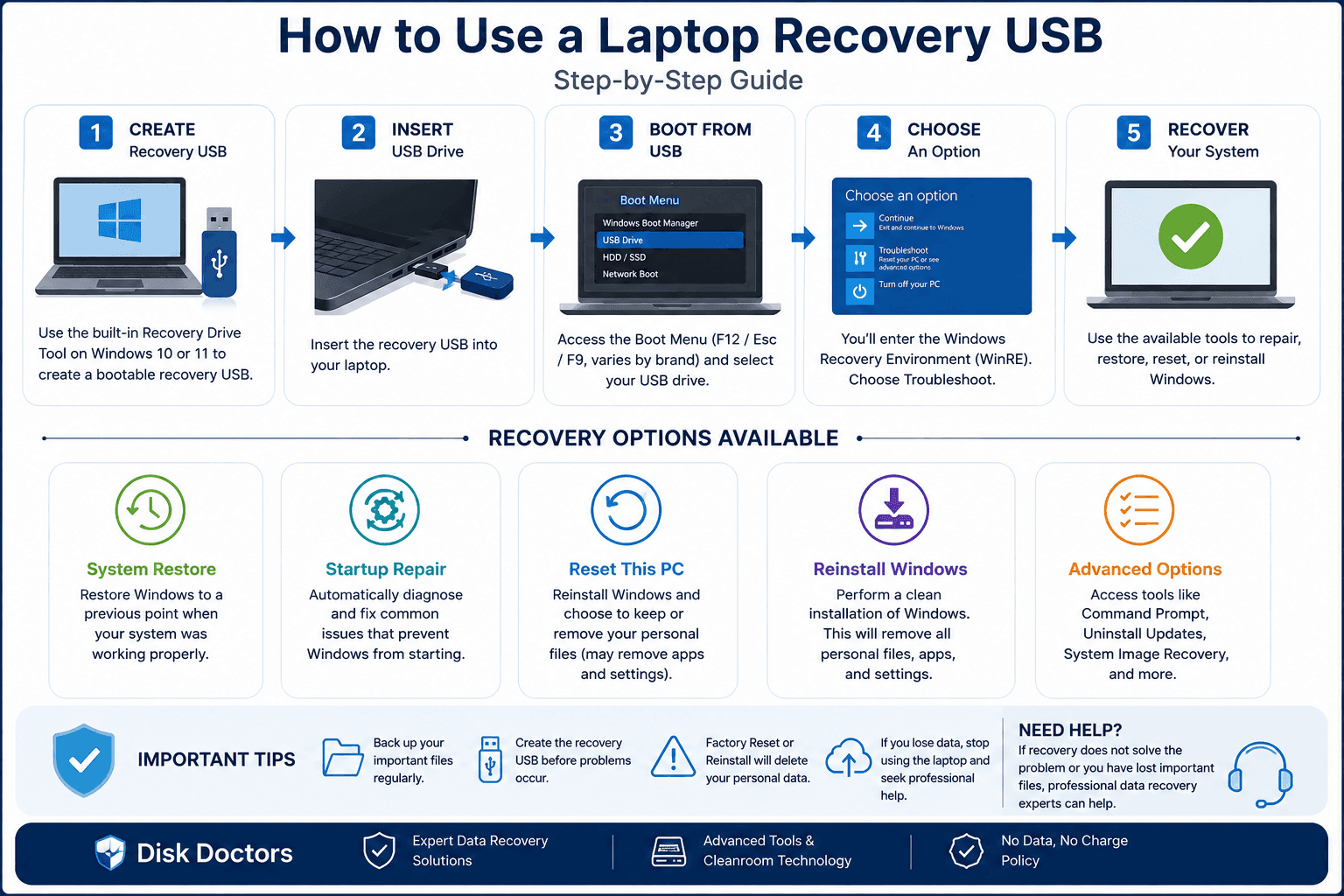
How to Create a Laptop Recovery USB on Windows 10
Windows 10 includes a built-in Recovery Drive tool.
Follow these steps:
Step 1: Open Recovery Drive Tool
Search:
“Create a recovery drive”
from the Windows search bar.
Open the tool using administrator permission.
Step 2: Choose System File Backup Option
Windows will ask whether you want to include system files.
Including system files allows you to reinstall Windows if necessary.
Without system files, the USB mainly provides troubleshooting tools.
For most users, including system files is the safer option.
Step 3: Select USB Drive
Connect your USB drive.
Select it from the list.
Remember:
The process will erase everything currently stored on the USB.
Step 4: Complete the Creation Process
Windows will copy recovery files to the USB.
The process may take several minutes depending on:
- USB speed
- Windows version
- System files included
Once completed, safely remove the USB.
How to Create a Laptop Recovery USB on Windows 11
Windows 11 uses a similar process.
Step-by-Step Process
- Connect your USB drive
- Search “Recovery Drive”
- Open the recovery tool
- Select whether to include system files
- Choose your USB device
- Start the creation process
The main difference between Windows 10 and Windows 11 is the interface design, but the recovery process remains largely similar.
How to Boot Your Laptop from a Recovery USB
After creating the recovery USB, you need to start your laptop from the USB drive.
Step 1: Insert the USB Drive
Connect the recovery USB before turning on your laptop.
Step 2: Open Boot Menu
Different laptop brands use different keys.
Common boot menu shortcuts include:
- Dell: F12
- HP: Esc or F9
- Lenovo: F12 or Fn + F12
- Asus: F8
- Acer: F12
Press the key repeatedly immediately after powering on.
Step 3: Select USB Boot Option
Choose your USB drive from the boot menu.
Your laptop should now load the Windows recovery environment.
How to Use a Laptop Recovery USB to Restore Your System
Once your laptop boots from the recovery USB, you can access several tools.
Running System Restore
System Restore allows you to return Windows settings to a previous working point.
Steps:
- Select Troubleshoot
- Choose Advanced Options
- Select System Restore
- Choose a restore point
- Follow the instructions
This is useful if recent changes caused system problems.
Using Startup Repair
Startup Repair automatically checks for common boot issues.
It can fix:
- Damaged boot files
- Startup configuration problems
- Certain Windows loading errors
Factory Reset Using Recovery USB
A factory reset restores your laptop to a fresh Windows state.
However, it may remove:
- Applications
- Settings
- Personal files
Always confirm what will be deleted before proceeding.
Reinstalling Windows from Recovery USB
A clean Windows installation completely replaces the operating system.
This may be necessary when:
- Windows is severely corrupted
- Recovery tools fail
- The system cannot be repaired
Before reinstalling Windows, ensure important files are safely backed up.
Common Laptop Recovery Problems and Solutions
Recovery USB Not Recognised
Possible causes include:
- Incorrect boot settings
- Secure Boot restrictions
- USB formatting issues
- BIOS/UEFI configuration
Try:
- Using another USB port
- Checking BIOS settings
- Creating the USB again
System Restore Failed
System Restore may fail because:
- Restore points are corrupted
- System files are severely damaged
- Storage problems exist
In these cases, additional recovery options may be required.
Files Missing After Factory Reset
Factory resets can remove personal files.
If files were deleted during recovery, avoid saving new data to the laptop.
New files can overwrite recoverable information.
What To Do If Laptop Recovery Causes Data Loss
Recovery tools are designed to fix system problems, but some actions can accidentally remove files.
This commonly happens after:
- Factory resets
- Windows reinstallations
- Partition changes
Can You Recover Data After a Factory Reset?
Sometimes, yes.
Recovery depends on:
- How much new data was written
- Whether the drive was formatted
- Type of storage device
- Condition of the drive
The sooner you stop using the laptop after data loss, the better the chances of recovery.
DIY Recovery Software: What It Can and Cannot Do
Recovery software may help with:
- Accidentally deleted files
- Simple logical issues
However, it is not designed for:
- Physically damaged drives
- Failed SSDs
- Mechanical hard drive failures
Installing recovery software on the affected drive can overwrite recoverable data.
When to Use Professional Laptop Data Recovery
Professional recovery is recommended when:
- The laptop does not detect the drive
- The storage device has physical damage
- Important business files are missing
- DIY methods have failed
If the problem involves a damaged storage device, specialist Hard Drive Recovery may be required to safely retrieve files.
How Professional Data Recovery Works
Professional recovery usually involves:
- Initial evaluation
- Drive diagnosis
- Data extraction planning
- Secure recovery process
- File delivery
Specialists use controlled methods to protect the original data and improve recovery chances.
Final Thoughts
A Laptop Recovery USB is a valuable tool for repairing Windows problems when your laptop cannot start normally. It can help restore system access, repair startup issues, and provide important troubleshooting options.
However, recovery tools are not always risk-free. Factory resets, reinstallations, and incorrect troubleshooting steps can result in permanent data loss.
The safest approach is to:
- Create recovery backups before problems occur
- Avoid unnecessary resets
- Protect important files
- Seek professional help when valuable data is involved
Disk Doctors helps individuals and businesses recover important files from failed laptops, damaged drives, and complex storage problems using professional recovery methods.
Frequently Asked Questions
What is a Laptop Recovery USB used for?
A Laptop Recovery USB helps repair Windows problems, access recovery tools, and restore systems when normal startup fails.
Can a recovery USB fix a laptop that will not boot?
Yes, it can help repair certain startup problems and access troubleshooting tools.
Does using a recovery USB delete files?
Not always. Some recovery options preserve files, but factory resets and reinstallations can remove data.
How big should a laptop recovery USB be?
A 16GB USB drive is usually the minimum recommended size, but larger drives may be required when including system files.
Can I recover files after using a recovery USB?
Yes, recovery may be possible depending on what actions were performed and whether new data has overwritten the files.
Is a recovery USB the same as a Windows installation USB?
No. A recovery USB focuses on troubleshooting and repair, while installation media is designed mainly for installing Windows.