You insert your SD card into your camera or computer, expecting to see your photos, but something is wrong. Your pictures have disappeared, the card appears empty, or your computer displays an error asking you to format it. If this happens, you may be able to recover photos from SD card storage without losing your memories permanently.
SD cards are widely used in digital cameras, smartphones, drones, and other devices. They are convenient for storing photographs, videos, and important files, but data can become inaccessible because of accidental deletion, corruption, formatting, or physical damage.
The most important thing is to avoid actions that could overwrite the missing files. In this guide, we will explain why SD card photos disappear, what you should do immediately, which recovery methods are worth trying, and when professional assistance may be necessary.
Why Are Photos Missing from Your SD Card?
Before attempting a fix, try to understand what happened. Different problems require different solutions, and choosing the wrong approach can make recovery more difficult.
1. Photos Were Accidentally Deleted
Accidental deletion is one of the most common reasons people lose pictures. You might delete the wrong folder while organising photographs, press the delete button on your camera, or format the card without realising it contains important files.
Deleted photos may remain recoverable if their storage space has not been overwritten. However, recovery is not guaranteed, particularly if the card has continued to be used.
Solution: Stop taking new pictures, avoid transferring additional files to the card, and consider a suitable recovery method before making further changes.
2. The SD Card Is Asking to Be Formatted
You connect your memory card to a Windows computer, but instead of displaying your pictures, a message appears asking you to format the disk.
This can happen because of file system corruption, an interrupted transfer, an improper removal, or damaged partition information.
Formatting may make the card usable again, but it can also make existing files harder to recover.
Solution: Do not format the card if it contains important photos. Eject it safely, reconnect it once using a reliable card reader, and check whether the same message appears. If it does, avoid further repair attempts until you have considered your recovery options.
3. The SD Card Appears Empty
Sometimes the card opens normally, but the folders containing your photographs are missing.
Possible explanations include accidental deletion, file system errors, hidden files, or corruption.
Solution: Check whether the files are simply hidden. On Windows, open File Explorer and enable hidden items in the View menu. If the photos remain missing, avoid saving new files to the card while you investigate recovery options.
4. The SD Card Is Not Recognised
A memory card that does not appear on your computer may have a connection problem, a damaged card reader, file system corruption, or a fault within the card itself.
Solution: Try a different compatible card reader or USB port. You can also check whether another computer recognises it. If the card becomes unusually hot, shows visible damage, or repeatedly disconnects, stop testing it.
5. Photos or Videos Are Corrupted
Your pictures may appear in the folder but refuse to open. Videos might stop playing halfway through, or image files may display errors.
This can result from interrupted transfers, a failing memory card, or corruption during recording.
Solution: Keep the original files untouched. Work with copies if possible, and avoid formatting the card or repeatedly attempting repairs that modify its contents.
What Should You Do Immediately When SD Card Photos Go Missing?
Your first actions can make a significant difference to the chances of successful recovery.
Step 1: Stop Using the Memory Card
Remove the card from the camera or device once it is safe to do so. Do not take additional photographs or record new videos.
New data can overwrite the space occupied by deleted files, making those files difficult or impossible to recover.
Step 2: Do Not Format the Card
If your computer or camera asks you to format the card, cancel the message.
Formatting changes the card's file system. Depending on the type of formatting and subsequent use, recovery may still be possible, but there is no benefit in taking unnecessary risks when your files are already missing.
Step 3: Check the Card Reader and Connection
Before assuming your photos are lost, rule out simple connection problems.
- Try another compatible card reader.
- Check the USB port or adapter.
- Test the card on another computer, if it is safe to do so.
- Look for visible damage to the card or its contacts.
If the card is recognised on another device, the issue may be related to the original reader or computer rather than the memory card itself.
Step 4: Check Existing Backups
Look for copies in your computer's photo folders, cloud storage, camera transfer software, or previously created backups.
If the photographs were imported into a photo management application, check its library as well. You may already have another copy without needing to recover anything from the SD card.
How to Recover Photos from an SD Card
Once you have protected the card from further changes, the next step depends on whether it is physically healthy and whether the problem involves deleted files or a damaged file system.
Method 1: Use Photo Recovery Software
Recovery software may help when photographs have been accidentally deleted or the card has experienced certain logical problems.
The general process is:
- Stop using the card in your camera.
- Connect it to a computer using a compatible reader, provided the card appears physically healthy.
- Choose a reputable recovery application that supports your card and file types.
- Scan the card for recoverable photographs.
- Preview the results where the software permits.
- Save recovered files to a different drive, never back onto the affected card.
This method is most appropriate for cards that remain stable and readable. If the card disconnects repeatedly, is physically damaged, or causes the computer to freeze, stop the scan instead of repeatedly trying different tools.
Method 2: Check for Existing Photo Copies
If you previously transferred photographs to a computer, search for the original image folders and imported photo libraries.
For Windows users, check the Recycle Bin if the files were deleted from the computer rather than directly from the card. Files deleted directly from removable storage may not appear there.
Also check cloud backups if you had automatic photo synchronisation enabled.
This approach is worth trying because restoring an existing copy is often safer than attempting recovery from a damaged card.
Method 3: Recover Files After Accidental Formatting
If you formatted the card by mistake, stop using it immediately.
Whether you can recover photos depends on factors such as:
- Whether a quick or full format was performed
- Whether new files have been written
- The card's condition
- The file system and device involved
Recovery software may locate some files after certain quick formats. However, a full format or extensive overwriting can reduce the chances of recovery significantly.
Do not repeatedly format the card in the hope of fixing it. If the pictures are important, consider professional Data Recovery assistance before attempting further changes.
Method 4: Seek Professional SD Card Data Recovery
Sometimes, DIY methods are not suitable. A card might not be detected, may have suffered physical damage, or may contain important photographs that cannot be replaced.
In these situations, specialist assessment can help establish whether the data is recoverable and which approach is appropriate.
Professional recovery may be worth considering when:
- The card is not recognised by multiple compatible readers.
- Files remain inaccessible after reasonable troubleshooting.
- The card has been physically damaged.
- Recovery software cannot read the card reliably.
- The missing files are valuable business, client, or personal records.
Professional recovery does not guarantee that every file can be restored. The outcome depends on the condition of the card and the extent of the damage.
When Should You Stop Trying DIY Recovery?
Recovery software is not a universal solution. Continuing to experiment can increase the risk of losing data, particularly when the card has a hardware fault.
Stop attempting DIY recovery if:
- The card is cracked or visibly damaged.
- The card repeatedly disconnects during scanning.
- Your computer freezes whenever you access it.
- The card becomes unusually hot.
- Several recovery tools fail to read it consistently.
Avoid opening the card or attempting electronic repairs yourself. Memory cards contain delicate components, and physical damage may require specialist equipment.
If the photographs are irreplaceable, the safest option is to stop using the card and seek advice from a qualified recovery provider.
How to Prevent SD Card Photo Loss in the Future
Although no storage device is completely immune to failure, a few simple habits can reduce the risk of losing important pictures.
Back Up Photos Regularly
Do not keep the only copy of important photographs on an SD card. Transfer them to a computer, external storage device, or trusted cloud service.
For professional photographers, maintaining more than one independent copy of important client images is particularly important.
Use the Correct Ejection Procedure
Wait until file transfers and camera recording operations have finished before removing the card. Use the device's safe-eject procedure where applicable.
Removing a card during writing can corrupt files or damage the file system.
Replace Unreliable Cards
If a card repeatedly reports errors, loses files, or becomes difficult to read, stop relying on it for important recordings. Replacing an unreliable card is generally safer than continuing to use it.
Verify Transfers Before Deleting Originals
After copying photographs to another device, open several files and confirm that the transfer was successful before deleting the originals or formatting the card.
How Professional Data Recovery Can Help
When ordinary troubleshooting does not work, professional Data Recovery Services can help assess the problem and determine the available recovery options.
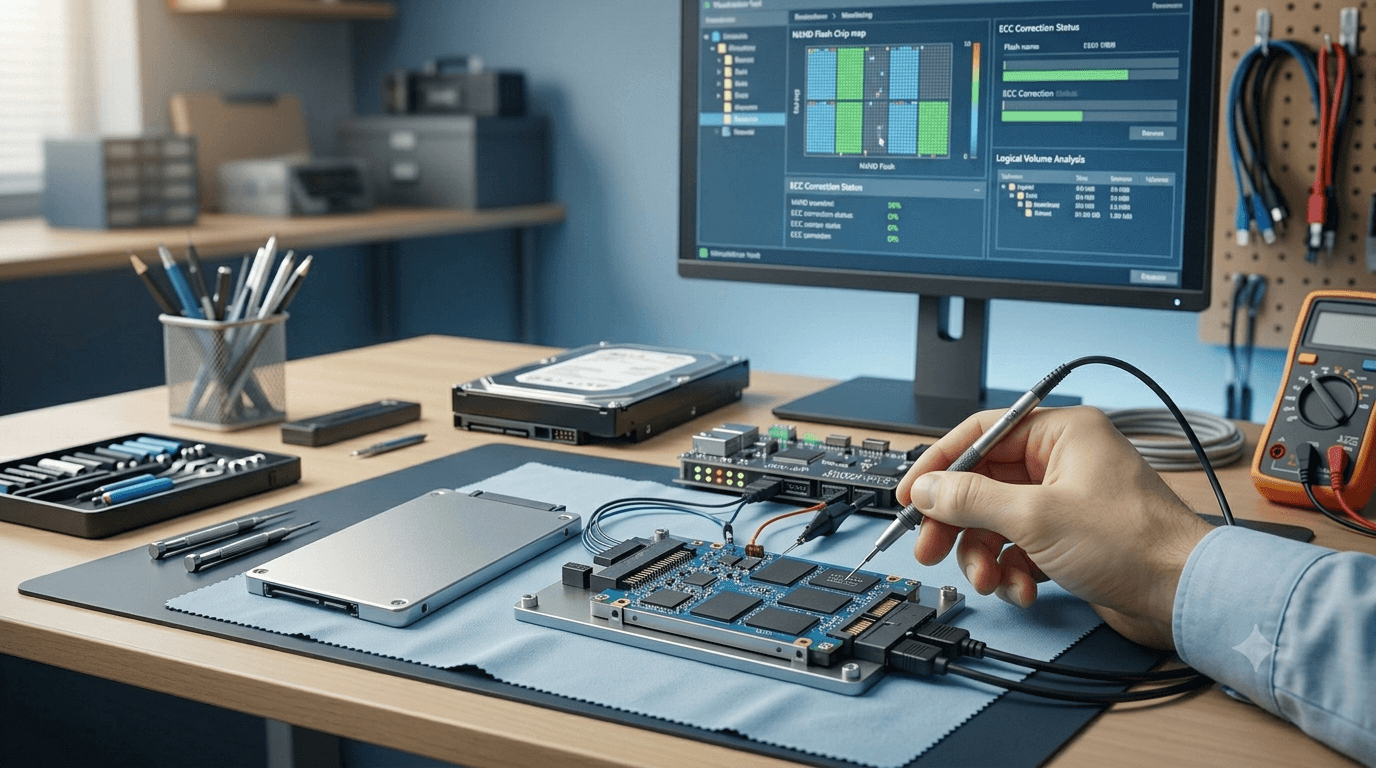
A recovery provider may examine the card, establish whether the issue is logical or physical, and use suitable techniques to extract accessible data. The exact process depends on the type of card and the nature of the failure.
Before sending a card for recovery, ask about evaluation fees, confidentiality, turnaround times, and whether you will receive a clear quote before authorising the work.
For important photographs and videos, choose a provider that explains the risks honestly rather than promising guaranteed results.
Final Thoughts: Protect Your Photos Before They Are Lost Permanently
Missing photographs do not always mean the data has disappeared permanently. Accidental deletion, file system corruption, and formatting can sometimes be reversed or recovered from, provided the data has not been overwritten.
The most important steps are simple: stop using the card, do not format it, check for existing backups, and choose a recovery method suited to the problem.
If important photos remain inaccessible, Disk Doctors can be contacted to discuss professional recovery options and determine the next appropriate step.
Frequently Asked Questions
Can I recover photos from an SD card after deleting them?
Yes, recovery may be possible if the deleted data has not been overwritten and the card remains readable. Stop using the card immediately to avoid reducing the chances of recovery.
Can I recover photos from an SD card after formatting it?
Sometimes. Recovery depends on the type of formatting, whether new data was written, and the card's condition. Avoid using the card after accidental formatting.
Why does my SD card show no photos?
The files may have been deleted, hidden, or made inaccessible by file system corruption. Check for hidden files and existing backups before attempting recovery.
Why does my computer ask me to format my SD card?
This message can indicate file system corruption or a problem reading the card. If you need the existing files, cancel the format prompt and investigate recovery options first.
Can I recover videos as well as photographs?
Potentially, yes. Recovery depends on whether the video data remains intact and whether the software or recovery process supports the file types involved.