Table of Contents
- Why Do Word Documents Disappear or Get Lost?
- How to Recover an Unsaved Word Document
- How to Recover a Deleted Word Document
- What If the Word Document Exists but Will Not Open?
- What to Do If None of These Methods Work
- When Should You Consider Professional MS Office Files Recovery?
- How to Prevent Losing Word Documents in the Future
- Final Thoughts
- Frequently Asked Questions
You have spent an hour working on an important document, only for Microsoft Word to close unexpectedly, your laptop to restart, or the file to disappear. It is a frustrating situation, particularly when you cannot remember saving a copy. Fortunately, you may be able to recover unsaved Word document files using built-in recovery options in Microsoft Word or Windows, even if you thought your work was lost.
However, the right solution depends on what happened. An unsaved document, an accidentally deleted file, and a corrupted Word document are three different problems. Each requires a different recovery method.
In this guide, we explain how to find missing documents, restore previous versions, recover deleted files, and identify situations where professional MS Office Files Recovery may be necessary.
Why Do Word Documents Disappear or Get Lost?
Before trying different recovery methods, identify how the document was lost. This will help you choose the most appropriate solution without making the situation worse.
1. Microsoft Word Closed Without Saving
Word can close unexpectedly due to an application crash, system restart, power interruption, or operating system issue.
If you were working on a document without saving it, some of your work may still be available through Word's recovery features. Whether it can be restored depends on the AutoRecover settings, the time of the last recovery save, and the circumstances of the shutdown.
If you need to recover unsaved Word document content after an unexpected shutdown, start by checking Word's built-in recovery options.
2. You Accidentally Deleted the Document
Sometimes a document is deleted while cleaning up folders, emptying the Recycle Bin, or organizing work files.
If the file was stored locally, you may be able to restore it from the Recycle Bin. If it was permanently deleted, recovery may still be possible, depending on whether the storage space has been reused.
For permanently deleted documents that cannot be restored through Windows, professional Data Recovery Services may help assess whether the original file can still be retrieved.
3. You Saved the Document but Cannot Find It
A missing document is not always a deleted document. You may have saved it in Downloads, Documents, a temporary folder, or a cloud-synchronized location without realizing it.
Before attempting recovery, search for the filename or a distinctive phrase from the document. This simple check can save time and prevent unnecessary changes to your files.
4. The Word Document Became Corrupted
A document may exist on your computer but refuse to open. You might see an error message, unusual characters, missing content, or a message indicating that Word cannot read the file.
Possible causes include interrupted saving, storage problems, damaged files, or synchronization errors.
The original file should be preserved before you attempt repairs. If the document contains important information and ordinary repair methods fail, specialist Microsoft Office File Recovery may be worth exploring.
How to Recover an Unsaved Word Document
If Word closed before you saved your work, start with the recovery options built into Microsoft Word. The exact menu names may vary depending on your version.
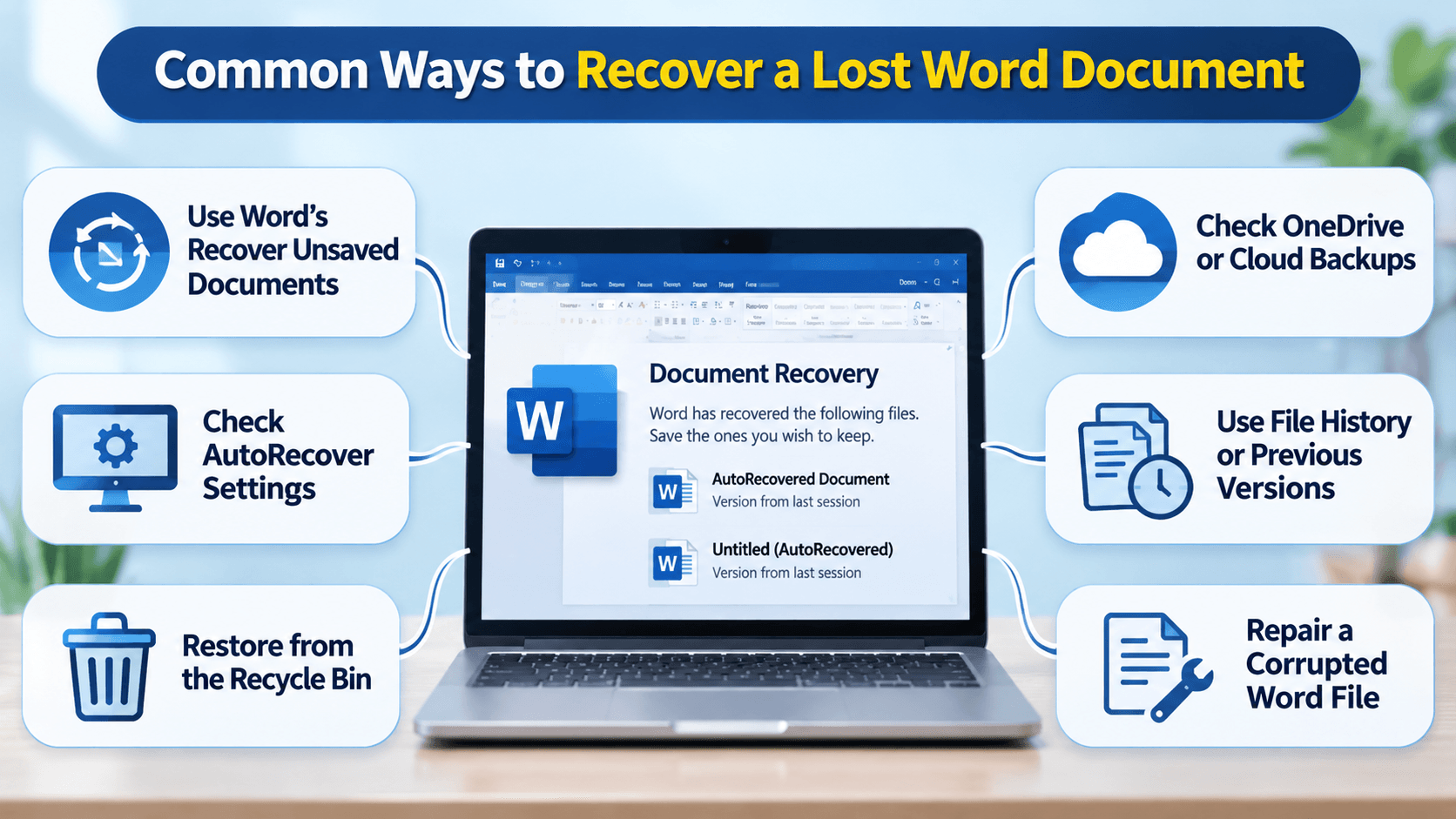
Method 1: Use Word's Recover Unsaved Documents Option
Microsoft Word may keep a recoverable copy of a document that was closed without saving.
Follow these steps:
- Open Microsoft Word.
- Select File.
- Choose Info and look for Manage Document or the document recovery options available in your version.
- Select Recover Unsaved Documents, if available.
- Review the documents listed.
- Open the relevant file and save it immediately under a new name.
If your document appears, save it to a known folder before continuing your work.
This method is particularly useful when Word closes unexpectedly and an unsaved recovery copy remains available. It will not necessarily work if AutoRecover was disabled or no recoverable copy was created.
If you cannot recover unsaved Word document content using this option, do not immediately assume that the document is permanently lost. Try the other methods below.
Method 2: Check the Document Recovery Pane
After an unexpected shutdown, Word may display a Document Recovery pane when you reopen the application.
This pane can contain one or more recovered versions of your work.
Open each relevant version and check the contents and timestamps. Choose the version containing the most recent work, then save it with a new filename.
If the recovery pane does not appear, it does not automatically mean your document is permanently lost. Try the other recovery methods in this guide.
Method 3: Check AutoRecover Settings
AutoRecover helps Word preserve recovery information while you work. However, it is not the same as manually saving a document, and it does not guarantee that every change will be available.
To check the settings in many desktop versions of Word:
- Open Word.
- Go to File → Options.
- Select Save.
- Look for the AutoRecover file location and the option to save AutoRecover information.
- If a location is shown, check it for available recovery files.
If you find a potentially relevant file, make a copy before attempting to open or modify it.
These steps can help you recover unsaved Word document content when a suitable recovery copy exists. If no copy is available, move on to checking backups and previous versions.
How to Recover a Deleted Word Document
If you previously saved the document but deleted it, use a different approach.
Method 1: Restore the File from the Recycle Bin
On Windows, deleted local files may remain in the Recycle Bin until they are permanently deleted or the bin is emptied.
To restore a document:
- Open the Recycle Bin on your desktop.
- Search for the document by name.
- Right-click the file.
- Select Restore.
Windows will normally return the file to its original location.
If you cannot find it, check whether it was stored in a synchronized cloud folder or removed permanently.
Method 2: Check OneDrive or Other Cloud Storage
If you save documents to OneDrive or another cloud service, a previous copy may still be available.
Check the relevant cloud folder, its recycle bin, and its version history where supported.
Version history can be especially helpful if the document still exists, but important text has been overwritten. You may be able to restore an earlier version instead of rebuilding the document from scratch.
Be careful when restoring older versions of synchronized documents, particularly if other people are editing them. Check the version's date and content before replacing the current file.
Method 3: Use Windows File History or Previous Versions
Windows backup features may help restore an earlier copy of a document if they were configured before the loss occurred.
Depending on your setup, you may be able to:
- Open the folder where the document was stored.
- Right-click the folder and select Properties.
- Look for the Previous Versions tab.
- Review any available versions.
The availability of this option depends on your backup configuration and Windows version. If no previous version exists, this method will not recover the file.
If these options do not help you recover unsaved Word document files or previously saved documents, consider whether the files were stored on a drive that has experienced a failure.
What If the Word Document Exists but Will Not Open?
A document that refuses to open may be corrupted rather than deleted. In this situation, avoid overwriting the original file.
Try Word's Open and Repair Feature
Microsoft Word includes an option that may help with certain damaged documents.
- Open Word.
- Select File → Open → Browse.
- Locate the affected document.
- Select the file.
- Open the menu beside the Open button.
- Choose Open and Repair, if available.
If Word opens the document, review the content carefully and save a separate copy.
This feature cannot repair every type of corruption, particularly when the file is severely damaged or the underlying storage device has failed.
If the document contains important business records, legal material, financial information, or irreplaceable work, preserve the original before trying further repairs.
For more serious cases involving damaged Microsoft Word files, MS Office Files Recovery provides information about specialist recovery options.
What to Do If None of These Methods Work
If the document is missing from Word's recovery options, the Recycle Bin, and your backups, you may need to consider data recovery.
The next step depends on where the file was stored and what happened to it.
- Unsaved document: Recovery may be possible if a temporary or AutoRecover copy exists.
- Deleted document: Recovery may be possible if the relevant storage space has not been overwritten.
- Corrupted document: The file may be recoverable if enough of its original contents remain intact.
- Failing storage device: Stop using the affected device if you suspect physical failure, and seek specialist advice.
Do not download multiple recovery programs and install them on the same drive where the missing document was stored. New installations and other writes can overwrite recoverable data.
If the missing document is particularly important, consider professional Data Recovery Services before making further changes.
When Should You Consider Professional MS Office Files Recovery?
Built-in Word recovery tools are a sensible first step, but they have limitations. They cannot always retrieve documents that were permanently deleted, severely corrupted, or lost because of storage device failure.
Professional recovery may be worth considering when:
- An important document cannot be recovered through Word or backups.
- Several Office files have disappeared at the same time.
- Documents became inaccessible after a computer or storage failure.
- A damaged file contains business-critical information.
- Recovery software cannot read the affected storage reliably.
A specialist can assess the situation and explain the available options. Recovery is not guaranteed, and the outcome depends on the file's condition, the storage medium, and what has happened since the loss.
For these cases, MS Office Files Recovery is a relevant service to explore.
Disk Doctors provides recovery support for Microsoft Word, Excel, PowerPoint, Outlook, and other Office files affected by deletion, corruption, and storage-related problems.
How to Prevent Losing Word Documents in the Future
Recovering a missing document can take time, so prevention is worth the effort.
Enable AutoSave and AutoRecover
Where supported, enable AutoSave for documents stored in compatible cloud locations and ensure AutoRecover is configured appropriately.
Remember that AutoSave and AutoRecover serve different purposes, and neither replaces a reliable backup.
Save Important Documents Regularly
Use Ctrl + S frequently while working. For a new document, choose a clear filename and save it in a known location as soon as possible.
Keep Independent Backups
Store important documents in a separate backup location. For business-critical files, maintain more than one copy and periodically check that the backups can actually be restored.
Avoid Editing the Only Copy of an Important File
For essential documents, keep a separate copy before making major changes. This is particularly useful when editing lengthy reports, contracts, financial spreadsheets, or project documents.
Final Thoughts
Losing a Word document does not always mean starting again from scratch. Word's recovery tools, the Recycle Bin, cloud version history, and existing backups can all help, depending on how the file was lost.
Start with the simplest method that matches your situation. Avoid unnecessary changes to the affected storage, and preserve the original file whenever possible.
If important documents remain missing or inaccessible, Disk Doctors can help you explore appropriate recovery options.
Frequently Asked Questions
Can I recover a Word document that I never saved?
Sometimes. Word's recovery features may contain a copy if recovery information was created. If no recovery copy exists, restoration may not be possible.
How do I recover a Word document after accidentally closing it?
Reopen Word and check the Document Recovery pane. If it is unavailable, look under the File menu for the Recover Unsaved Documents option, if your version supports it.
Can I recover a Word document after emptying the Recycle Bin?
Potentially. Recovery depends on where the document was stored, whether its storage space has been overwritten, and whether backups or previous versions exist.
Why is my Word document showing an error when I open it?
The file may be corrupted, incomplete, or inaccessible because of a storage issue. Try working on a copy and using Word's Open and Repair feature if available.
Does Word automatically save every change?
No. AutoRecover may preserve recovery information, while AutoSave can save changes automatically in supported configurations. Neither guarantees that every change can be restored in every situation.
When should I use professional data recovery?
Consider professional help when built-in recovery options and backups fail, especially if the document is important or the storage device may be damaged.